
Yes. A PCIe 5.0 (Gen5) NVMe SSD works in a PCIe 4.0 (Gen4) M.2 slot with no adapter, no BIOS trick, and no risk to the drive. PCIe is backward compatible by design, so the drive negotiates down to the slot's speed and boots normally (SlashGear). The only real cost is peak sequential bandwidth — and for gaming and everyday use, you will not feel it.
The reason people ask is the spec sheet. A Gen5 drive advertises numbers around 14,000 MB/s, a Gen4 slot tops out near 8,000, so it looks like you are throwing away half the drive. On paper you are. In the workloads most people actually run, that missing half does almost nothing.
What happens when you plug a Gen5 drive into a Gen4 slot
The drive detects the slot is Gen4 x4 and links at that speed. Nothing breaks; nothing needs configuring. What you lose is the top of the sequential range.
A Gen4 x4 link has a theoretical ceiling around 8,000 MB/s, and the fastest Gen4 drives land near it — Samsung rates the 990 PRO at up to 7,450 MB/s sequential read, confirmed in Tom's Hardware's review. A Gen5 drive like the Samsung 9100 PRO is rated up to ~14,800 MB/s read (TechRadar). Put that same 9100 PRO in a Gen4 slot and its read collapses to roughly the same ~7,000–7,500 MB/s ceiling the 990 PRO already hits.
| Gen5 SSD in Gen5 slot | Gen5 SSD in Gen4 slot | |
|---|---|---|
| Sequential read (rated) | ~14,800 MB/s | ~7,000–7,500 MB/s |
| Random 4K read | high | effectively unchanged |
| Works at all? | Yes | Yes |
| Extra heat / risk | Runs hottest | Runs cooler than at Gen5 |
So the honest framing: dropping a Gen5 drive into a Gen4 slot turns it into a very good Gen4 drive. That is not a failure — it is just not what you paid the Gen5 premium for.
Does the slower speed actually matter?
For gaming, no. Game load times are dominated by decompression and asset streaming that your CPU and GPU handle, not by raw SSD bandwidth. Across current titles the gap between a Gen4 and a Gen5 drive is under two seconds, and usually a fraction of a second — the same conclusion we reached testing drives head to head in PCIe 4.0 vs PCIe 5.0 SSD: What Actually Changes for Gaming.
For everyday responsiveness, also no. Booting Windows, opening apps, and browsing files lean on random 4K reads at low queue depth, and those numbers are close between generations regardless of the sequential headline. The multi-gigabyte sequential figure only stretches its legs when you move very large files — copying a 100GB video project, extracting huge archives, loading big datasets. If that is not your daily workload, the Gen4 ceiling is invisible.
Where it does bite: sustained large-file transfers and professional workflows (video editing scratch disks, AI dataset loading). That is exactly the crowd the 9100 PRO's marketing targets, and exactly the crowd that should not be running it in a Gen4 slot.
The real gotcha: how your motherboard shares M.2 lanes
This matters more than Gen4 versus Gen5, and almost nobody checks it. Consumer CPUs have a fixed number of PCIe lanes, so board makers route them by sharing. Two patterns are common, and both are listed in your motherboard's manual:
- A secondary M.2 slot shares lanes with the main PCIe x16 (GPU) slot. Populate it and the GPU slot can drop from x16 to x8. On a modern card the frame-rate loss is usually small, but it is real.
- An M.2 slot shares bandwidth with SATA ports. Populate it and two or more SATA ports go dark — a problem if you still run SATA SSDs or hard drives.
Before you move a drive, open the board's manual and read the M.2 configuration table (sometimes called the block diagram). It tells you which slot runs off the CPU at full speed, which run off the chipset, and what each one disables. Choosing the right slot is free performance; choosing the wrong one can quietly halve your GPU link or drop your storage drives.
Heat is the other side note. A Gen5 drive throttles without cooling, but running it at Gen4 speeds produces less heat, so the M.2 heatsink your board already ships with is more than enough — see Do You Need an M.2 Heatsink for a PCIe 5.0 SSD? for when a separate one is worth buying.
Does it work the other way — a Gen4 drive in a Gen5 slot?
Yes, and this is the more common upgrade path. A Gen4 SSD runs in a Gen5 M.2 slot at its normal Gen4 speed. You lose nothing you had, and the slot simply runs below its ceiling. A newer AM5 or LGA 1851 board with Gen5 M.2 slots will happily run your existing 990 PRO or KC3000 — you are not forced to buy Gen5 storage just because the board supports it.
What to actually buy
Match the drive to the slot you have, not the slot you wish you had.
If your motherboard is Gen4-only (most B650, B550, X670, and mid-range Intel boards), buy a strong Gen4 drive and skip the Gen5 tax:
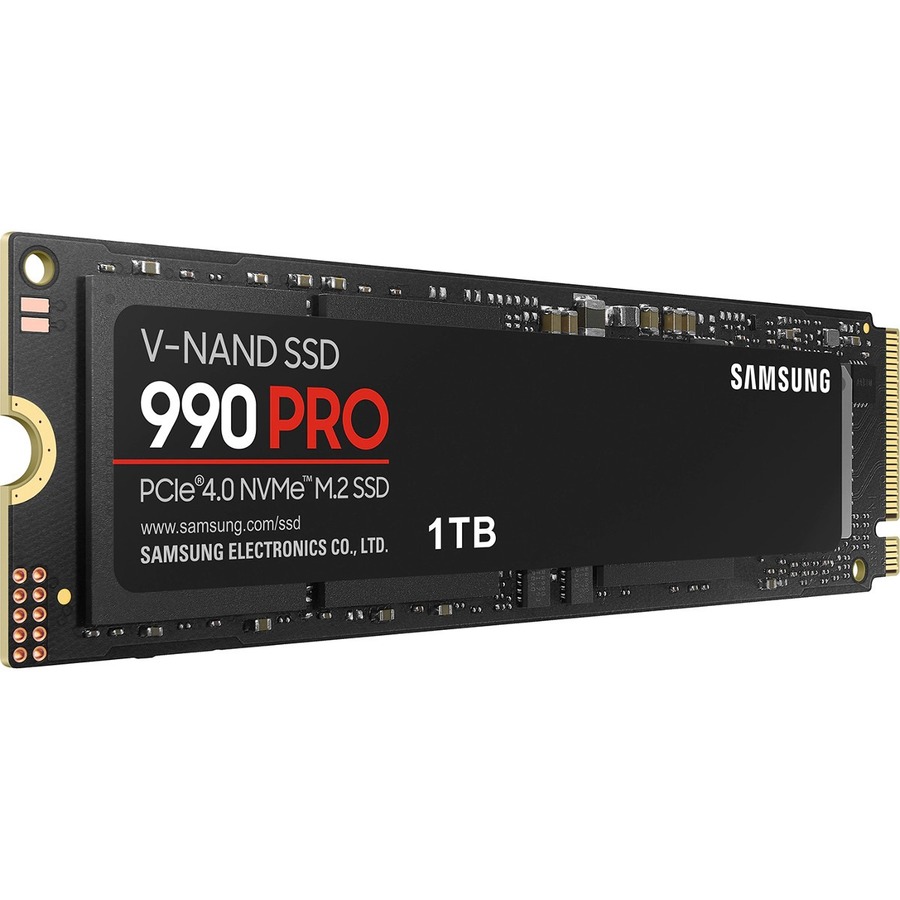
The Samsung 990 PRO 1TB ($367.98) is about as fast as a Gen4 slot allows and a common OS-plus-games drive. If you want the same class for less, the Kingston KC3000 1TB ($329.99) is a proven Gen4 workhorse.
Buy Gen5 only if you have a Gen5 slot now, or plan to move the drive to a Gen5 board soon, or run sustained large-file workloads that reward the bandwidth:
The Samsung 9100 PRO 1TB ($390.17) is a top Gen5 drive — but paying its premium to run it capped at Gen4 speeds is money spent on a number you never see. If you are on the fence about the generation itself, our Samsung 990 PRO vs 9100 PRO breakdown puts real load times next to the spec sheet.
Building fresh and want the slot and drive matched with compatibility checked automatically? The PC Builder flags Gen4-versus-Gen5 pairing as you pick parts.