
Yes, you can mix RAM brands and sizes, and in most cases the PC will boot and use the full combined capacity. There are two real catches. First, every installed module runs at the speed and timings of the slowest stick — a fast stick does not stay fast next to a slow one (Crucial). Second, two modules you bought separately are not tested to work together, so they can refuse to train, drop to a slower fallback speed, or fail to POST — the exact problem a single matched kit is built to avoid (Corsair).
People ask this mid-upgrade: there is a spare stick in a drawer, or the plan is to add 16GB to an existing 16GB cheaply. It usually works. Whether it is the right move is a different question, and the answer often comes down to one surprising fact — a matched kit can cost less than a single loose stick of the same capacity. The details are below.
What happens when you mix different sizes
This is the part that works better than most people expect. Modern Intel and AMD memory controllers do not need two identical sticks to run in dual channel. When the capacities differ, the controller splits memory into two zones: a symmetric zone, where the matching amount on each stick runs in dual-channel mode, and an asymmetric zone, where the leftover capacity on the larger stick runs single-channel (Intel).
An 8GB + 16GB pair is the clearest example. The first 8GB of the 16GB stick teams up with the 8GB stick for 16GB of dual-channel memory, and the remaining 8GB sits in single-channel. You get all 24GB, and most of it runs at full bandwidth. AMD platforms do the same thing under the name asymmetric dual channel. So "different sizes" is rarely the thing that breaks a build.
What you do not get is the neat, fully symmetric dual channel of two identical sticks — a slice of your memory is running at single-channel bandwidth. For everyday use the difference is invisible. It only shows up in workloads that lean hard on memory bandwidth, and even then it is a small effect compared to losing dual channel entirely.
What happens when you mix different speeds and timings
Here the rule is blunt: the system runs every stick at the speed of the slowest one (Crucial). Memory is backward compatible within a generation, so a faster stick will happily downclock to match a slower one — but it will not pull the slower stick up. Pair DDR5-6400 with DDR5-5600 and both run at 5600. The money you spent on the faster kit is parked.
Timings behave the same way. The board applies a single set of primary timings to the whole channel, so a tight CL30 stick next to a looser CL40 stick lands on the looser numbers, or on a conservative JEDEC default the board picks on its own. And this is where a lot of "my RAM is slow" confusion starts: XMP (Intel) and EXPO (AMD) are single-profile overclocks stored on the module. When two sticks carry different profiles — or one carries none — the board often refuses to apply either and boots at the JEDEC base speed, which can be far below what either stick is rated for.
That silent drop to JEDEC matters more than the capacity you gained. On a CPU-bound game, memory speed moves frame rates, and falling from a rated DDR5-6000 EXPO profile to a JEDEC 4800 baseline is a real loss — more of a loss, often, than the extra 8GB was ever going to help.
Why the brand matters less than the kit
Brand alone is not the problem. Two different-brand sticks with the same generation, speed, and voltage will usually run together fine. The reason manufacturers still tell you to buy a kit is subtler: different brands — and even different production runs of the same brand — can use different memory ICs, PCB designs, and SPD tuning, and once in a while those differences conflict enough to cause instability or a failed POST (Corsair).
A kit sidesteps that by design. The two (or four) modules in a 2 x 8GB or 2 x 16GB kit are binned and tested together at the rated profile before they ship, and a motherboard's QVL (qualified vendor list) validates kits, not individual loose sticks. Buy the kit and the matched-pair problem is simply not yours to solve.
There is one hard limit no controller works around: generation. DDR5 and DDR4 do not mix in any board — the notch, pin layout, and voltage all differ. If you are weighing that specific jump, we covered exactly what it costs in will DDR5 work on a DDR4 motherboard.
The honest catch: when mixing costs you more than it saves
Mixing is usually framed as the frugal move. Often it is not, and here is the case against it.
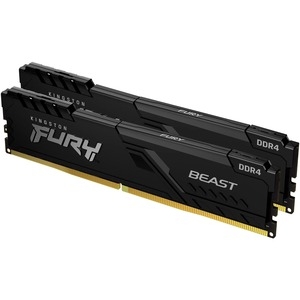
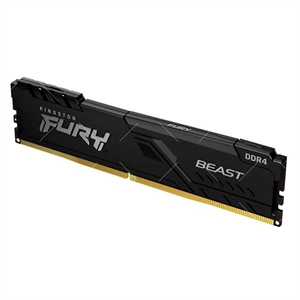
Start with price. A single 16GB Kingston FURY Beast module runs $274.74 in our catalog, while the 16GB (2 x 8GB) FURY Beast kit is $263.99 — the matched pair is cheaper than one loose stick, and it gives you clean dual channel out of the box. If your reason to mix is saving money, check the kit price first; the math frequently favors just buying the kit.
Then the performance trap. The whole point of paying for a fast kit is the XMP/EXPO profile, and mixing it with a mismatched stick is the fastest way to lose that profile and boot at JEDEC speed. In a CPU-bound game that regression can erase more frames than the added capacity ever gave back — the same dual-channel-versus-slow-memory gap we measured in single-channel vs dual-channel RAM.
Finally, the risk of a bad afternoon. A truly mismatched pair may need manual timing and voltage tuning in BIOS to stay stable, or it may not POST at all until you set things by hand. If you are comfortable in the memory menu, fine. If you are not, a matched kit turns a potential troubleshooting session into a plug-and-boot.
Who should mix and who should buy a matched kit
- Mix your existing sticks if you need a temporary capacity bump, both sticks are the same generation, you accept that the pair will run at the slower stick's speed, and you are willing to check stability in BIOS. Adding a spare 8GB to reach 24GB for heavy multitasking is a perfectly reasonable use of mixing.
- Buy a matched kit if you are building fresh, you want the rated XMP/EXPO speed guaranteed, or you want zero POST drama. For a new DDR5 build, a single kit like the Micron 64GB (2 x 32GB) DDR5 kit at $725.07 is the no-surprises path to full dual channel at rated speed.
Building from scratch and not sure a stick, board, and CPU agree? The parts list in our PC Builder flags a memory-and-platform mismatch before you order, not after the box arrives.