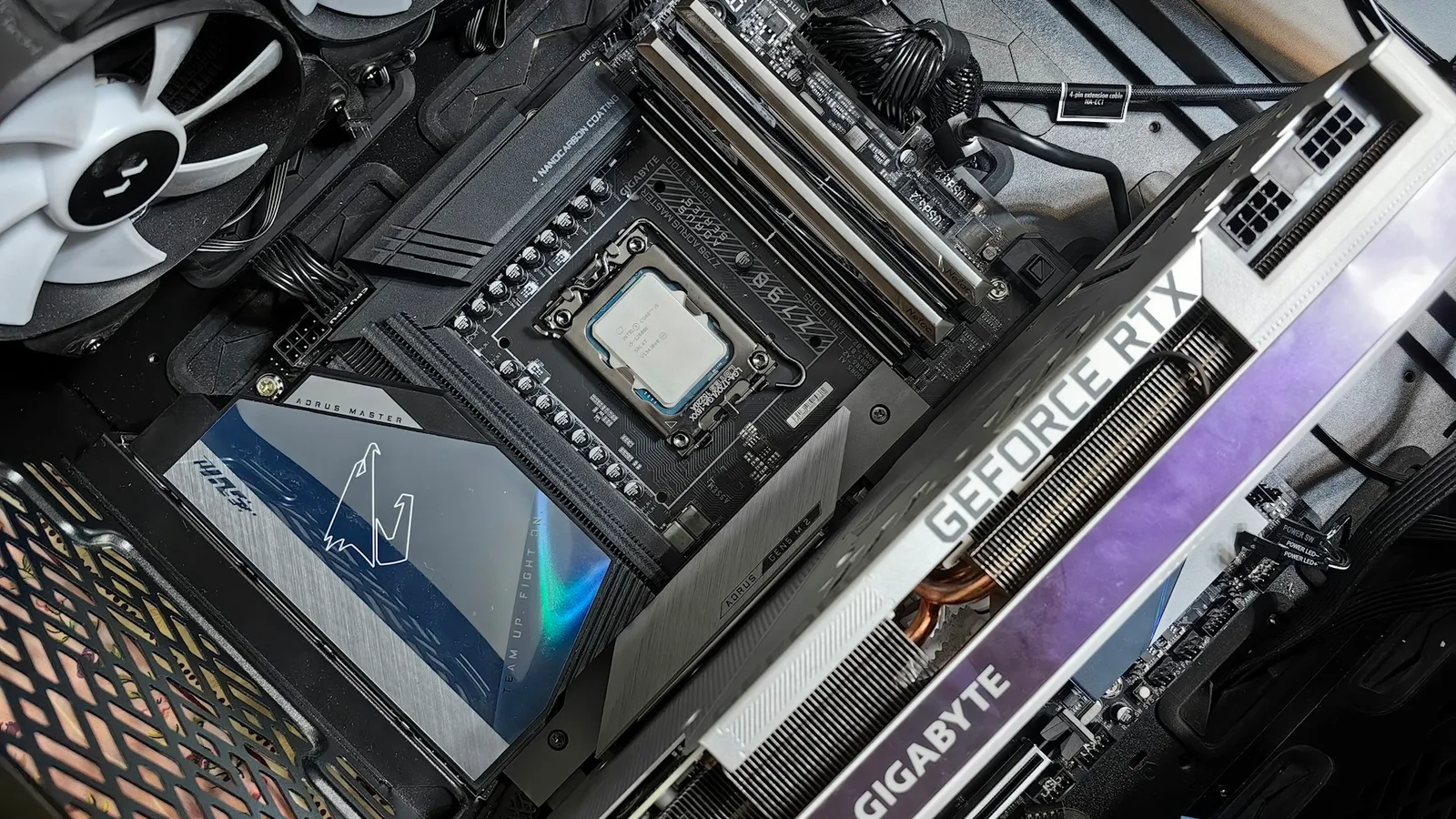

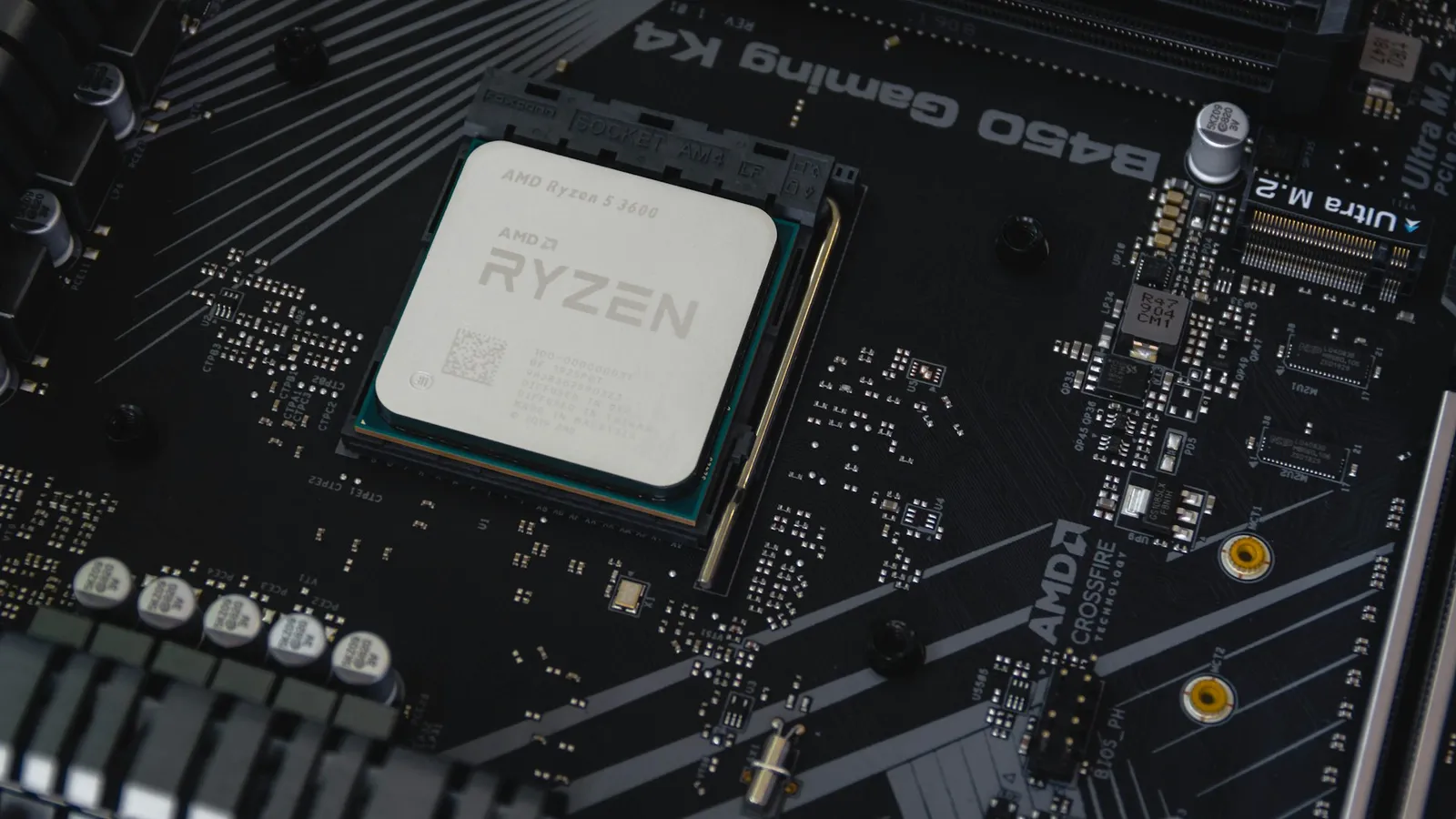
Sometimes. The one thing that decides it: whether your motherboard was built before or after the CPU you are installing. If the board is newer than the chip — you bought them together, or the board's a recent model — the firmware already knows the CPU and you can skip the update. If the board shipped before the CPU existed, it usually needs a BIOS update to POST with that chip, and on some platforms you have to do that flash before the new CPU goes in.
That gap between "board is newer" and "board is older" is the whole question. A BIOS (the firmware that initializes your hardware before Windows loads) carries a microcode table that tells the board how to talk to each CPU. A board can only include microcode for chips that existed when its firmware was written, so a brand-new CPU on an old firmware version is the case where you have to update. Below is how that plays out on AMD AM5 and Intel, and how to flash a board that will not even turn on yet.
The one rule that answers this
You do not need to memorize firmware versions. You need one comparison: was the board built before or after the CPU?
The BIOS microcode table only contains entries for processors that existed when that firmware version was compiled. So a CPU that launched after your board's firmware was written is invisible to it until you flash a newer version. That is why the answer is never a flat yes or no — it depends entirely on the age of the two parts relative to each other.
Two clean cases fall right out of that rule. Buying a CPU and motherboard together as a new combo? The board is current, it ships with recent firmware, and it will almost always POST on the first try. Dropping a newer-generation CPU into a board you have owned for a year or two? That is the update scenario — the board predates the chip.
The trap is the boxed board on a shelf. A B650 that has sat in a warehouse since 2023 is physically a current product, but its firmware is frozen at whatever version was flashed at the factory. Buy that board today for a Ryzen 9000 chip and you are in the "board is older than the CPU" case even though the box is new.
AMD AM5: when a Ryzen 9000 chip needs a flash first
AMD's AM5 socket is built for the long haul — the same board that took a Ryzen 7000 (Zen 4) chip at launch can run a Ryzen 9000 (Zen 5) chip today, and AMD has committed to supporting AM5 through 2029 (Tom's Hardware). That longevity is the selling point. It is also exactly why the BIOS question comes up: one socket spanning multiple CPU generations means plenty of boards out there are older than the chip you want to install.
Concretely: a 600-series AM5 board (B650, B650E, X670, X670E) manufactured before Zen 5 shipped needs AGESA firmware version 1.1.7.0 or newer to boot a Ryzen 9000 processor at all, with later versions adding performance and stability fixes (GIGABYTE, Tom's Hardware). If you pair, say, a Ryzen 5 9600X with an older B650 that still has 2023-era firmware, the system may not POST until you flash it.
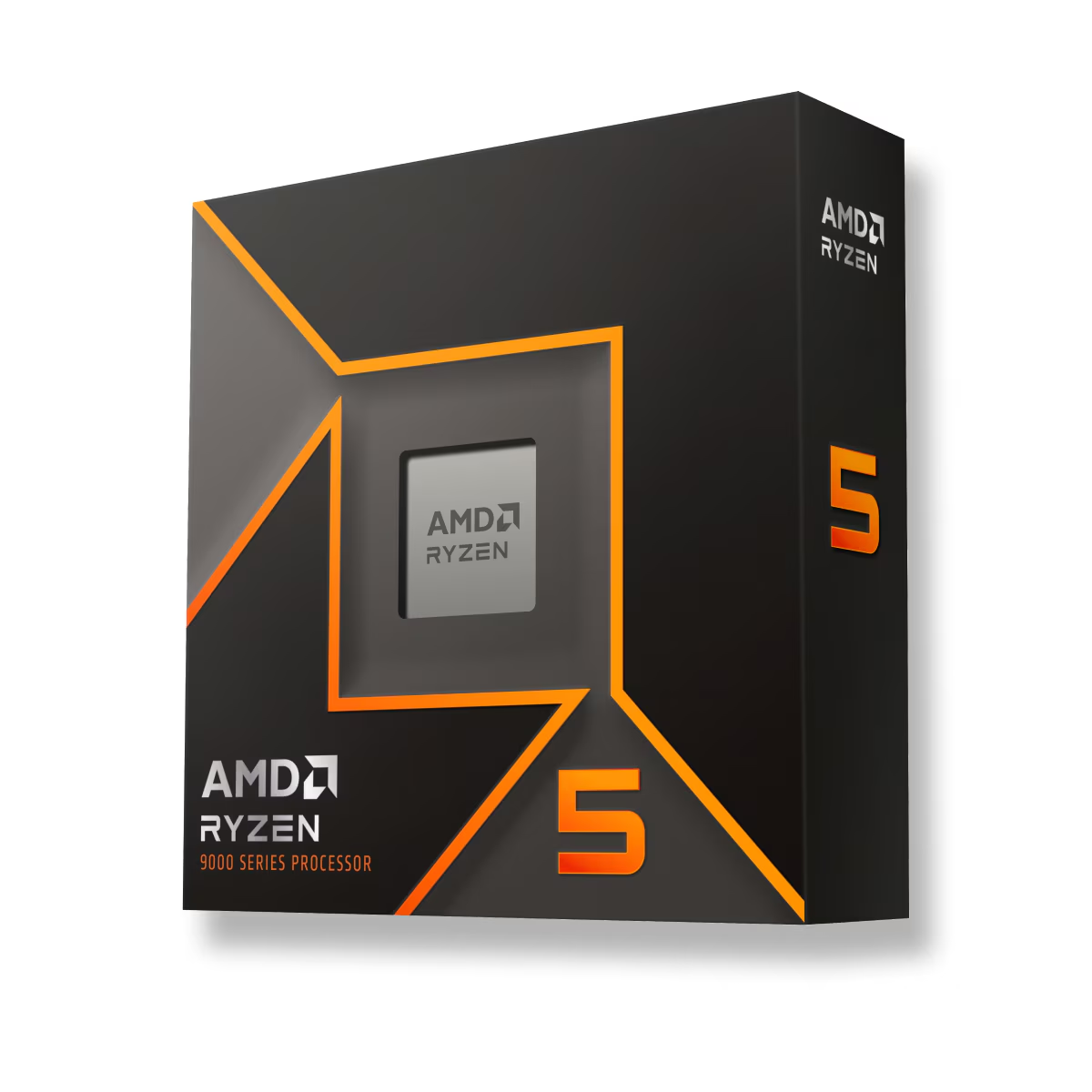
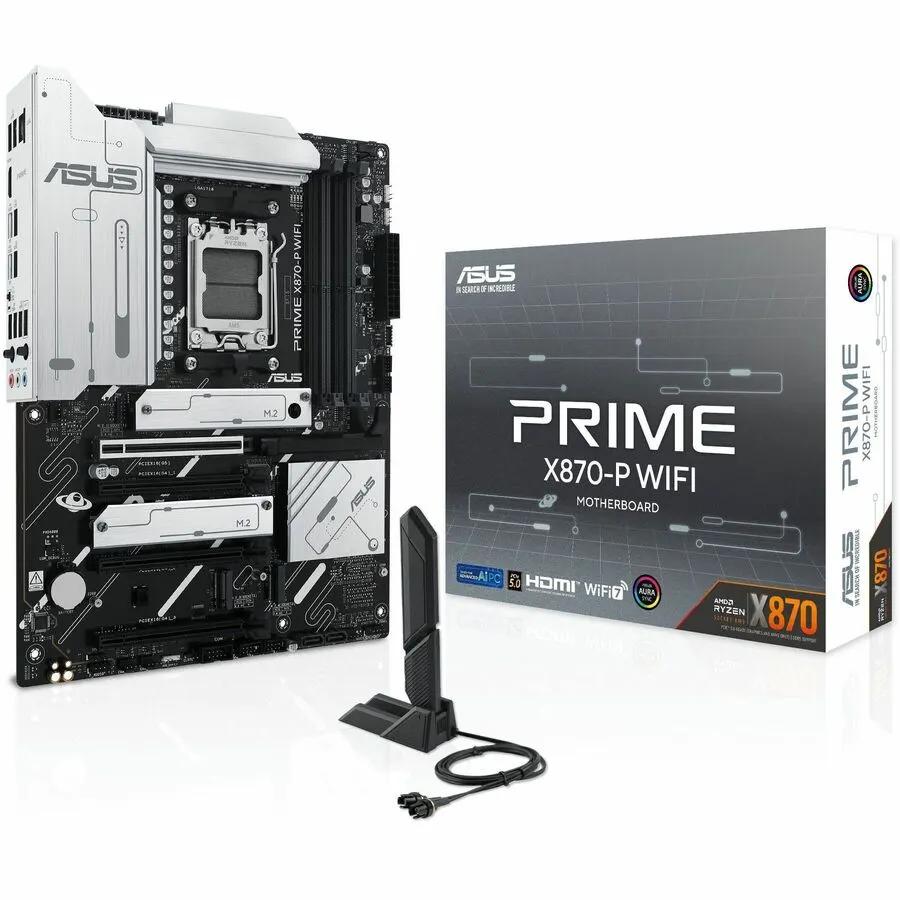
You can check what a board is running without a new CPU by looking at the AGESA version on the BIOS home screen with your current working chip installed. If it is already 1.2.0.x, a Ryzen 9000 upgrade will just drop in. Newer boards sidestep the whole issue: an 800-series board like the Asus Prime X870-P launched after Zen 5 and ships ready for it. If you are choosing an AM5 board and want the differences between chipset tiers, our A620 vs B650 breakdown covers what you actually give up on the cheapest boards.
Intel: LGA1700, LGA1851, and the microcode you actually want
Intel splits the picture. The LGA1700 socket runs three generations — 12th Gen (Alder Lake), 13th Gen (Raptor Lake), and 14th Gen (Raptor Lake Refresh). Inside that socket the same before/after rule applies: a board that shipped for 12th Gen needs a BIOS update to recognize a 13th or 14th Gen chip. ASUS keeps a per-board list of which firmware version each CPU generation requires (ASUS).
Arrow Lake broke the chain. The Core Ultra 200S family uses a new LGA1851 socket that is not compatible with LGA1700, so there is no dropping a Core Ultra chip into an old Raptor Lake board — it is a new board either way (Tom's Hardware). A current Z890 board such as the MSI MAG Z890 Tomahawk ships with firmware for the Core Ultra parts it was built around.
There is one Intel update you should treat as mandatory rather than optional. If you run a 13th or 14th Gen chip, Intel's 0x12B microcode addresses the elevated-voltage bug that was degrading some of those processors during idle and light loads, and it ships inside a BIOS update (Intel, Guru3D). It prevents further damage on a healthy chip but cannot repair one that has already degraded — so update before problems start, not after.
BIOS FlashBack: how to update with no CPU at all
Here is the part that trips people up: if a board will not POST with the new CPU because it needs a flash, how do you get into the BIOS to flash it? On many boards you do not have to. USB BIOS FlashBack (ASUS's name; MSI calls it Flash BIOS Button, and other brands have their own) updates the firmware with only the 24-pin and CPU power connectors attached — no CPU, no RAM, no graphics card required (ASUS).
The process is the same across brands:
- On another PC, download the exact BIOS file for your board model from the maker's site and rename it as the tool requires (ASUS boards use a specific filename and a
.CAPfile). - Copy that one file to the root of a USB drive formatted FAT32.
- Plug the drive into the labeled FlashBack / Flash BIOS port on the rear I/O — it is a specific port, not any USB socket.
- With the power supply connected and switched on, hold the FlashBack button until its LED starts blinking, then wait. When the light stops, the flash is done.
Only some boards have this feature, so check the spec sheet before you count on it. If yours lacks it, the fallback is to borrow or buy a cheap older-generation CPU the board already supports, use it to flash the BIOS, then swap in the new chip.
When you can skip the update entirely
The honest answer most guides bury: a lot of the time, you should not update. A BIOS flash is the one routine PC task that can brick a board outright if it is interrupted, and a newer version number is not a reason on its own. If your board is newer than your CPU — a fresh combo, or a current-model board — the firmware already runs the chip and flashing adds risk for zero gain.
Skip it when: you are building with a same-generation CPU and board bought together; your system is already stable and the changelog for the new version does not mention anything you have; or the board is a recent model clearly newer than the processor. Chase the update when: you are installing a CPU that launched after the board, you have a specific instability the release notes address (the Intel 0x12B case), or the board simply will not POST with the new chip.
The cleanest way to avoid the whole gamble is to not buy a board older than your CPU in the first place. Spec a matched CPU and motherboard in our PC Builder, which pairs current parts so the board arrives ready for the chip — and if a combo needs a known flash, you know going in rather than at the workbench.