
For a single-GPU gaming PC, X870 and X870E give you the exact same performance, so buy the cheaper X870 and put the difference toward your graphics card. Both chipsets feed your GPU 16 lanes of PCIe 5.0 and your primary M.2 SSD 4 lanes of PCIe 5.0 — and those lanes come from the CPU, not the chipset. The board logo changes nothing about your frame rate.
The confusion is understandable. X870E costs more, sits higher in every manufacturer's lineup, and carries the "E" that used to mean "the good one." On AM5 that letter now signals extra connectivity — more USB, more SATA, more downstream PCIe lanes — and nothing about how fast your games or your boot drive run.
Gaming performance is identical — here is why
AM5's design decides this before the chipset ever gets involved. The Ryzen CPU itself provides the 16 PCIe 5.0 lanes your graphics card uses and the 4 PCIe 5.0 lanes your primary M.2 SSD uses. The chipset — X870 or X870E — only handles the extra devices hanging off the board: secondary M.2 slots, SATA drives, most USB ports, network and audio controllers (Puget Systems).
So a Ryzen 7 9800X3D in a $260 X870 board and the same chip in a $685 X870E board render the same number of frames in the same game at the same settings. There is no "gaming chipset." Your FPS is set by the CPU, the GPU, and your memory — not by whether the board says X870 or X870E.
That is the honest part most spec sheets bury: if your build is one graphics card and one or two SSDs, the X870E is spending your money on ports you will never plug anything into.
Where X870E actually pulls ahead
The gap is real, it is just not about speed. X870E uses two chipset dies where X870 uses one, and that second die is what unlocks the extra lanes and ports (Corsair, Digital Citizen).
| X870 | X870E | |
|---|---|---|
| Chipset dies | 1 | 2 |
| Downstream PCIe 4.0 lanes | 12 | 20 |
| SATA ports | Up to 4 | Up to 8 |
| USB 10 Gbps ports | Up to 6 | Up to 12 |
| USB 20 Gbps ports | 1 | 2 |
| USB4 40 Gbps | Mandatory | Mandatory |
| GPU / primary NVMe | PCIe 5.0 (from CPU) | PCIe 5.0 (from CPU) |
Read that table for what you will use, not for the bigger numbers. Twelve downstream PCIe 4.0 lanes on X870 already cover a second and third M.2 slot plus 2.5G LAN and Wi-Fi on most boards. The jump to 20 lanes matters when a board also wants to offer a full second PCIe slot that runs at x8/x8, a fourth NVMe drive, or 10G networking — which is exactly what higher-end X870E boards are built for.
Eight SATA ports versus four is the clearest practical divide. If you are moving a stack of SATA SSDs or hard drives from an old build, X870E's extra ports save you an add-in card. A modern NVMe-only build never touches them.
What both boards give you that X670 didn't
The reason X870 exists at all is USB4. AMD made a 40 Gbps USB4 port mandatory on every 800-series board, where it was optional on the 600-series (Puget Systems). If you want guaranteed USB4 for an external SSD enclosure, a dock, or a high-resolution display over USB-C, any X870 board delivers it — you do not need to climb to X870E for that.
If you do not care about USB4, that is worth knowing too: a B850 board covers the same PCIe 5.0 GPU and NVMe support for less money and simply makes USB4 optional. The 800-series jump is really "do I want mandatory USB4," and X870 is the cheapest yes.
Price and availability at TechCortex
Prices below are current in our catalog at the time of writing.
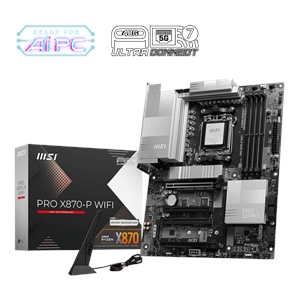
The value pick is the MSI X870-P WIFI at $260.40 — a full X870 board with PCIe 5.0 for the GPU and main SSD, USB4, and Wi-Fi. For a single-GPU gaming build, nothing above it makes your games run faster.
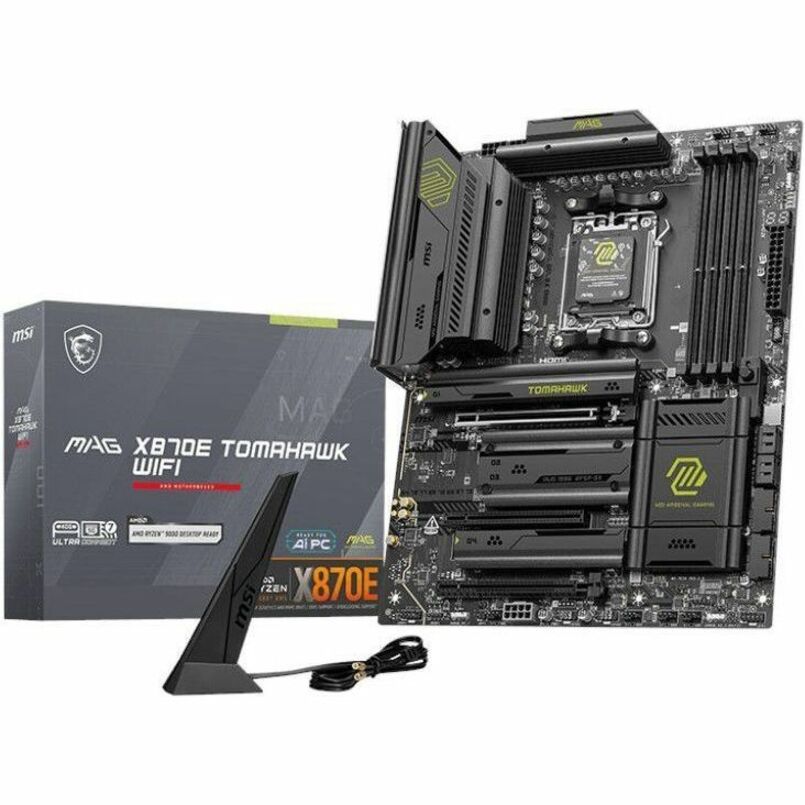
Step up to X870E and the mainstream choice is the MSI MAG X870E TOMAHAWK WIFI at $366.19 — about $106 more, buying the second chipset die, more USB and SATA, and the lane budget for extra expansion.
If you genuinely need maximum connectivity — think a second expansion card, a wall of NVMe, and heavy I/O — the Asus ROG Strix X870E-E GAMING WIFI at $535.37 is the high-end end of that range. Just be honest about whether you will fill it; that money is only well spent if the ports get used.
Whatever you pick, you can drop it into a full build with automatic compatibility checks in our PC Builder, which flags socket, memory, and clearance issues before you order.
Who should buy which
- Buy X870 if you are building a normal gaming or gaming-plus-work PC: one graphics card, one to two NVMe SSDs, and you want USB4. This is the majority of builds, and the MSI X870-P WIFI covers it.
- Buy X870E if you will actually use the extra hardware: a second PCIe slot at x8/x8, three or more NVMe drives, several SATA drives, 10G LAN, or a large number of USB devices at once.
- Consider B850 instead if you do not need mandatory USB4 — it keeps PCIe 5.0 for the GPU and main SSD and costs less than either 800-series board.
The trap to avoid is buying X870E "to be safe." Safety on a gaming build is a better GPU or more storage, not idle chipset lanes.